Build and Edit Routines
Use the builder for the class plan itself: routine name, folder, difficulty, playlist, interval order, move timing, alert mode, springs, side focus, and notes.
- Creating a class plan from saved Lagree moves
- Editing a routine before teaching
- Keeping routines organized by folder
Start a routine
From Timers, tap plus to start a routine. If you are inside a folder, create the routine there so the class plan starts in the right place.
Give the routine a clear name before sharing it or teaching from Apple Watch. Names are what other instructors and devices will recognize first.
- 1Open Timers.
- 2Tap a folder or stay in the main list.
- 3Tap plus, then choose Blank Timer.
- 4Name the routine before class so shared links and Watch lists are readable.
Add moves and transitions
The Add button opens the move library. Choosing a saved move uses that move preset's default duration, category color, default springs, and split-side setting. The builder also supports a 15 second Transition interval from the Add button context menu.
Dragging intervals changes the teaching order. Long-pressing an interval exposes copy, paste above, paste below, remove, and edit actions.
Edit interval details
Each interval has its own name, color, duration, alert mode, spring counts, custom spring label, notes, and optional side focus. Alert modes include Beep, Long Beep, Bell, Voice, Voice + Countdown, Haptic, and Silent.
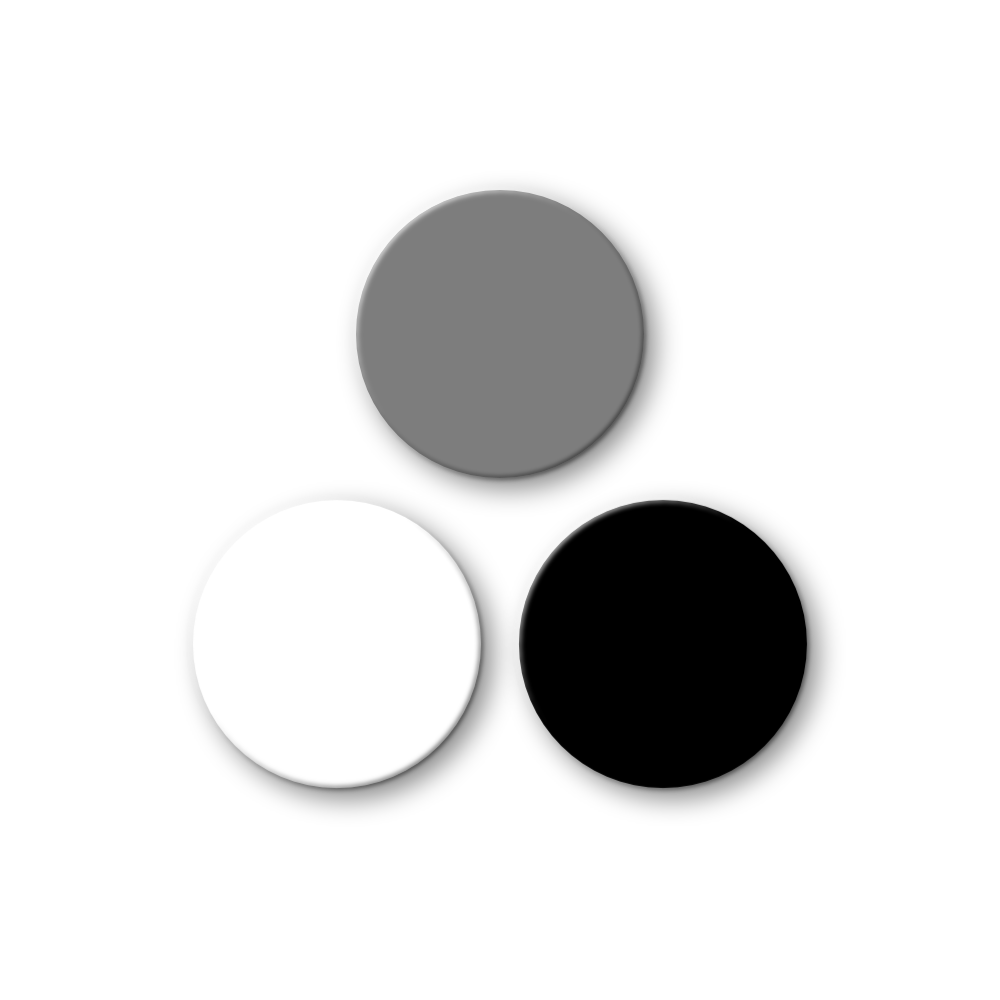
Existing setups keep L for gray/light, M for white/medium, and H for black/heavy. Choose Configure 1–4 spring colors to add, remove, or reorder colors, set a resistance label and color for each, and select 0–8 springs per color. Labels and colors are independent so the setup can match your machine.
Use side focus deliberately
Set a side focus such as Left or Right when a move should be cued on one side.
For Lagree programming, the clearest teaching pattern is usually separate left and right intervals in the sequence. That keeps the timer, next-move preview, and Watch view easy to follow.
Folder and routine order
Folders can be renamed, styled, sorted, and reordered in the iPhone library.
Use folders for class formats, studios, instructors, or training blocks. A tidy folder list makes routines easier to find on iPhone and companion devices.
Open the routine once, scan the interval order, and check springs, side focus, prep time, and alert mode before teaching.